Configure Data Shop Layout
Introduction
The Data Shop Layout Designer is a tool designed to customize the order view of your Data Shop according to your preferences. With this tool, you can adjust the width and position of individual parameters and assemble a meaningful order view through the preview feature.
Features
Width and Position Adjustment
-
Width: The width value (1-12) corresponds to the column value in Bootstrap.
-
Position: The position value corresponds to the order value in Bootstrap. If the same position is assigned to multiple parameters, the order in which they appear in the Data Shop determines their sequence.
For more information on how Bootstrap’s grid system works, visit the Bootstrap Grid Documentation.
Layout View
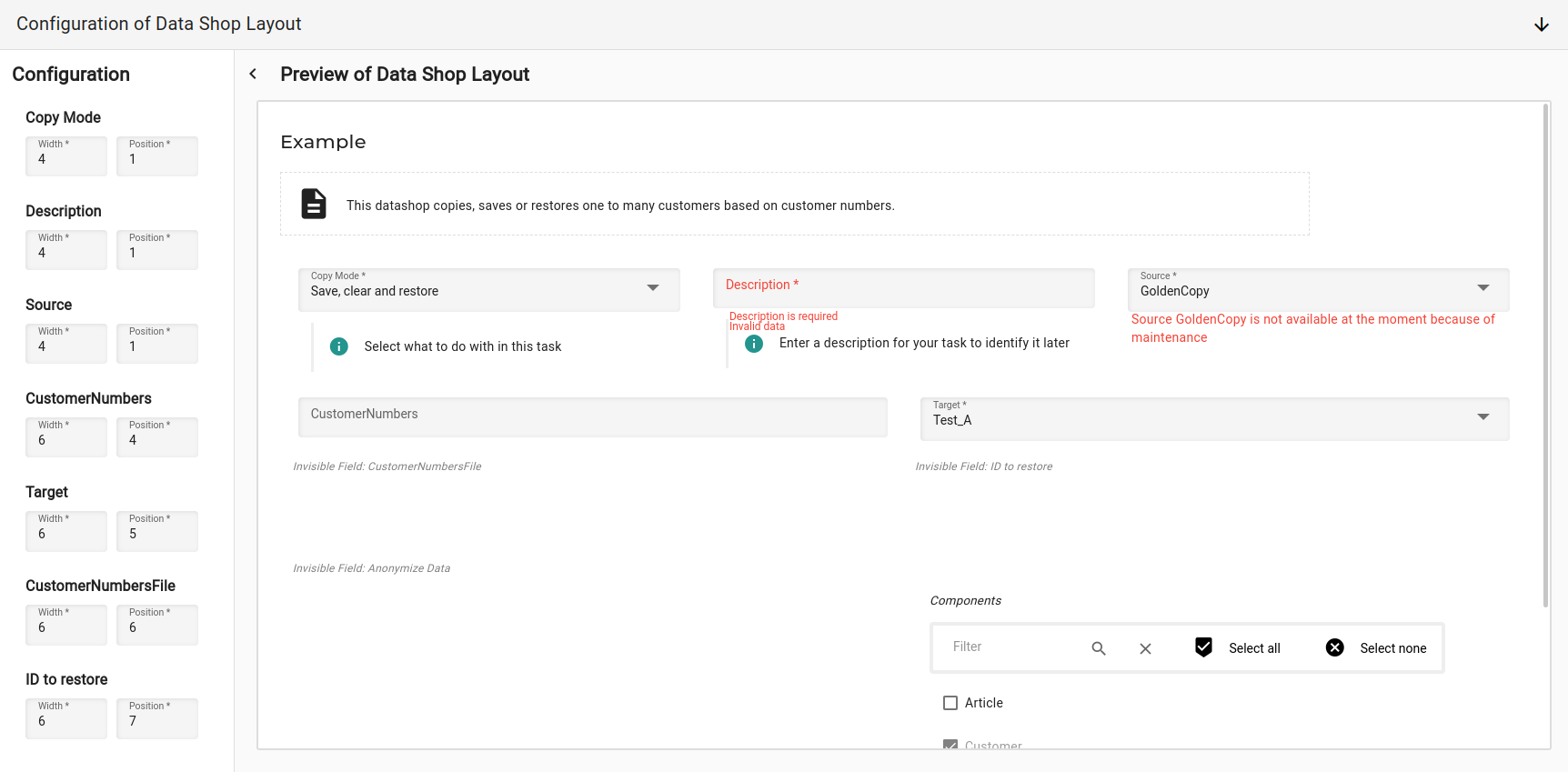
The layout view is structured in a BottomSheet format:
-
Left Side: Displays the configuration settings, including width and position.
-
Right Side: Displays the preview of the order view.
The configuration panel can be collapsed when needed, allowing the preview to utilize the full width of the screen for a more comprehensive view.
Realistic Preview
The preview fields are interactive and provide a realistic preview of the final order view. This ensures that users can visualize the adjustments in a practical and user-friendly manner.
Handling Parameter Changes
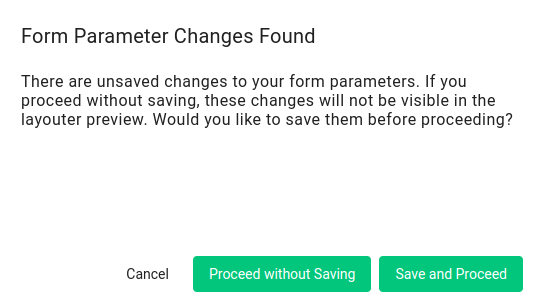
When adjustments are made to the parameters in the Data Shop or new parameters are added, a dialog appears upon opening the Layout Designer. This dialog informs the user that changes have been made to the parameters. The user has two options:
-
Save and Proceed: Saves the changes to the Data Shop and then opens the Layout Manager.
-
Proceed without Saving: Opens the Layout Designer without saving the changes.
If the changes are not saved, they will not be reflected in the preview.
Usage Instructions
-
Open the Layout Designer: Navigate to the Data Shop Layout Designer from the context menu on the right side.
-
Adjust Width and Position: On the left side, set the desired width (Bootstrap column value) and position (Bootstrap order value) for each parameter.
-
Preview the Layout: The right side of the Layout Designer displays a live preview of your order view. Adjust parameters as needed to achieve the desired layout.
-
Collapse Configuration Panel: If you need a wider preview, collapse the configuration panel by clicking the collapse button.
-
Handle Invisible Parameters: Note that parameters set to
visible: falsewill appear as placeholders with the field’s name in the preview.