Native Table Copy Tasks
Using a Native Table Copy Task
In this tutorial we want to move a complete set of tables from one database to another as fast as possible. The source and target databases run on the same DBMS and share the same basic structure. There are no special reduction or modification rules; we simply need a full copy of all rows in all selected tables.
From a technical point of view, this is a bulk copy scenario:
-
Many tables and potentially large volumes of data.
-
Source and target use the same database technology.
-
We want to minimize runtime and load on the XDM execution server.
Under these conditions, XDM can use the native unload/load utilities of the database system, for example Db2 Unload/Load or SQL Server bcp, instead of copying row by row with SQL statements.
This is exactly what a Native Table Copy Task is designed for. Because performance is the main goal in this tutorial and source and target run on the same DBMS without any reduction or modification rules, we use a Native Table Copy Task and not a Compatibility Table Copy Task.
More Information about the Native Table Copy Task can be found in the Reference
A Compatibility Table Copy Task always uses SQL Data Transport: it reads data with SELECT and writes it with INSERT, UPDATE, DELETE and MERGE statements.
The extracted data is stored internally on the XDM server, and no database-specific unload/load utilities are used.
|
Providing data for the schema qa1
To provide a full unmasked copy of all the data in the production tables
for qa1, an XDM Native Table Copy Task will be used.
In XDM, all tasks are based on Task Templates. No tasks can be created without Task Templates. Task templates contain all the information that is shared between the different tasks that are derived from that template. Templates may or may not provide settings for all existing options. For individual tasks that are derived from a template, the following rules apply:
-
Tasks must add all information that is missing from the template.
-
Tasks may modify settings that already exist in the template (i.e., the settings of the template act as default settings that a task can overwrite).
-
Tasks may extend the template, for example by providing additional selection rules, which are then merged with the selection rules of the template at run time.
For example, a Native Table Copy Task template can specify which source connection the data is read from, and which tables participate in the copy process. The individual tasks that are derived from that template contain the remaining information, such as which target Environment to use, and whether the tables are to be renamed in the process.
It is also possible to have a Task Template that already contains all required information, and tasks that are derived from that template need not add any information at all. However, a task is always required because templates cannot be executed.
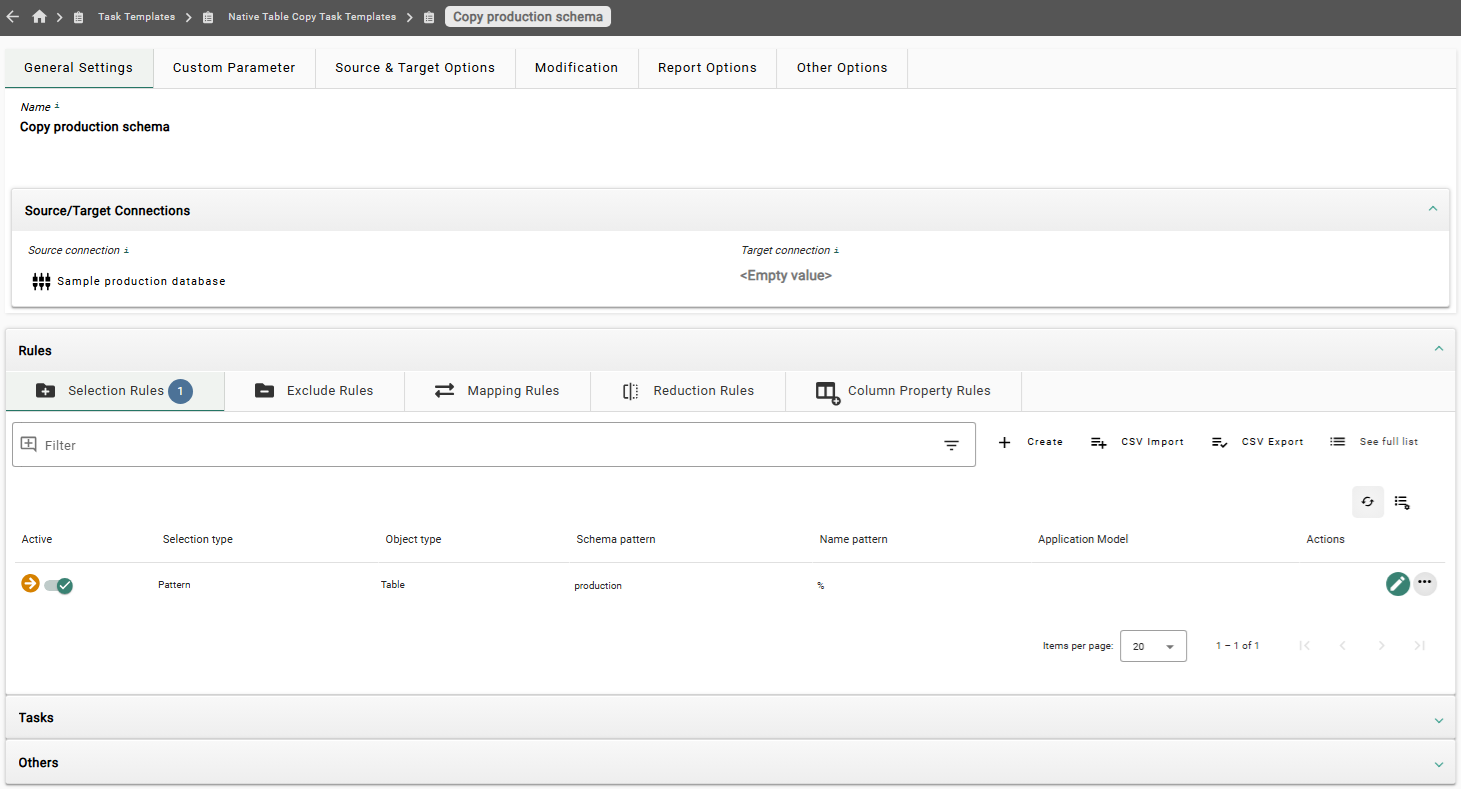
In this tutorial, you are going to create one Task Template to populate
the qa1 Environment.
The Task Template will specify the source Connection and the source schema
name so that all tables in that schema will be copied.
Creating the Native Table Copy Task Template
-
In the left sidebar, click the menu category Tasks to expand the tasks sub menu. Then click the menu item Task Templates.
-
In the tab Table Copy click the button
 on the left side of Native Table Copy Task Templates to expand the list. Initially, the list may
be empty.
on the left side of Native Table Copy Task Templates to expand the list. Initially, the list may
be empty. -
Click the button + Create. This opens a dialog window. Enter the following information:
Name
Copy production schema -
Click the button Create and edit. This will create the Native Table Copy Task Template object in XDM and open it in edit mode.
-
Under the expandable panel Source/Target connections, click Source connection and select Sample production database from the drop-down box.
Leave the target Connection unspecified. The target Connection will be chosen when the actual task is created. -
Click the button Save Changes.
-
Open the expandable panel Rules at the bottom of the page.
-
Under the tab Selection rules, click the button + Create.
-
Under Schema pattern, enter
production.Instead of entering the schema name explicitly, it is also possible to select it from the list of all existing schemas. To do so, click Pick and select the desired schema in the list on the left. The schema name will be copied into the field Schema pattern. -
Click the button Save Changes.
After creating the Task Template, you are going to create one task that
copies the data into the schema qa1 as is. In the next chapter, you will create a task that copies the
data into the schema qa3, whilst simultaneously masking personal information in the
employees table.
Creating the Native Table Copy Task
The first task is based on the Native Table Copy Task Template that we just created. It inherits the template’s source connection and selection rules.
-
Open the expandable panel Tasks at the bottom of the page.
-
Under the tab Tasks, click the button + Create. This opens a dialog window. Enter the following information:
Target Connection
Select Sample testing database as super user from the drop down list
Name
Copy production schema to qa1 -
Click the button Create and edit. This will create the Native Copy Task object in XDM and open it in edit mode.
-
Optional: In the tab Task Information in the field Description, enter a description for the new task.
-
Click the button Save Changes.
-
In the bottom expandable panel Rules select the tab Mapping rules and click the button + Create.
-
Enter the following information:
Description
(Optional, may be left empty)
Active
Check the box
Field selection mode
Select Simple from the drop down list
Object type
Select ANY from the drop down list
Field type
Select SCHEMA from the drop down list
Source selection pattern
%Target value mode
Select Pattern from the drop down list
Target value
qa1 -
Click the button Save Changes.
The first Native Table Copy Task is now defined.
Executing the first Table Copy Task
To execute your first Table Copy Task:
-
In the left sidebar, click the menu category Tasks to expand the tasks menu and select the menu item Task Templates.
-
In the tab Table Copy, click the button
on the left side of Native Table Copy Task Templates to expand the list. Click the button on the left side of Copy production schema. Locate the task Copy production schema to qa1 in the tab Tasks under the expandable panel Tasks and
click the button on the left side of the task name. -
In the right sidebar, click the button Execute. A dialog window opens. Leave Interrupt execution unchecked and click the button Execute and view. This will schedule the task for immediate execution and switch the main view to the expandable panel Executed Tasks.
-
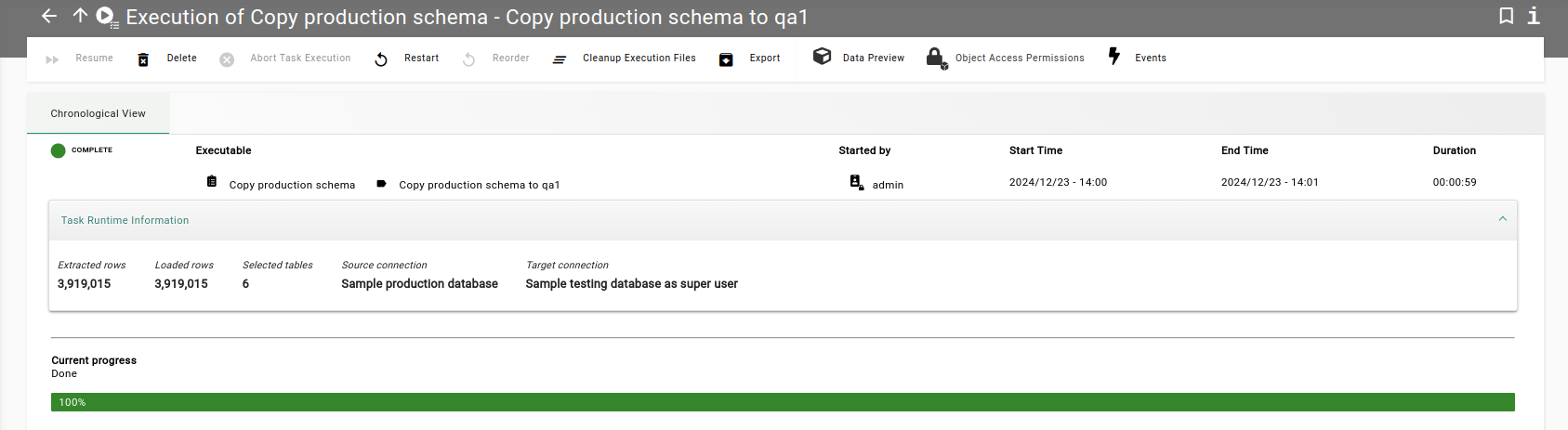
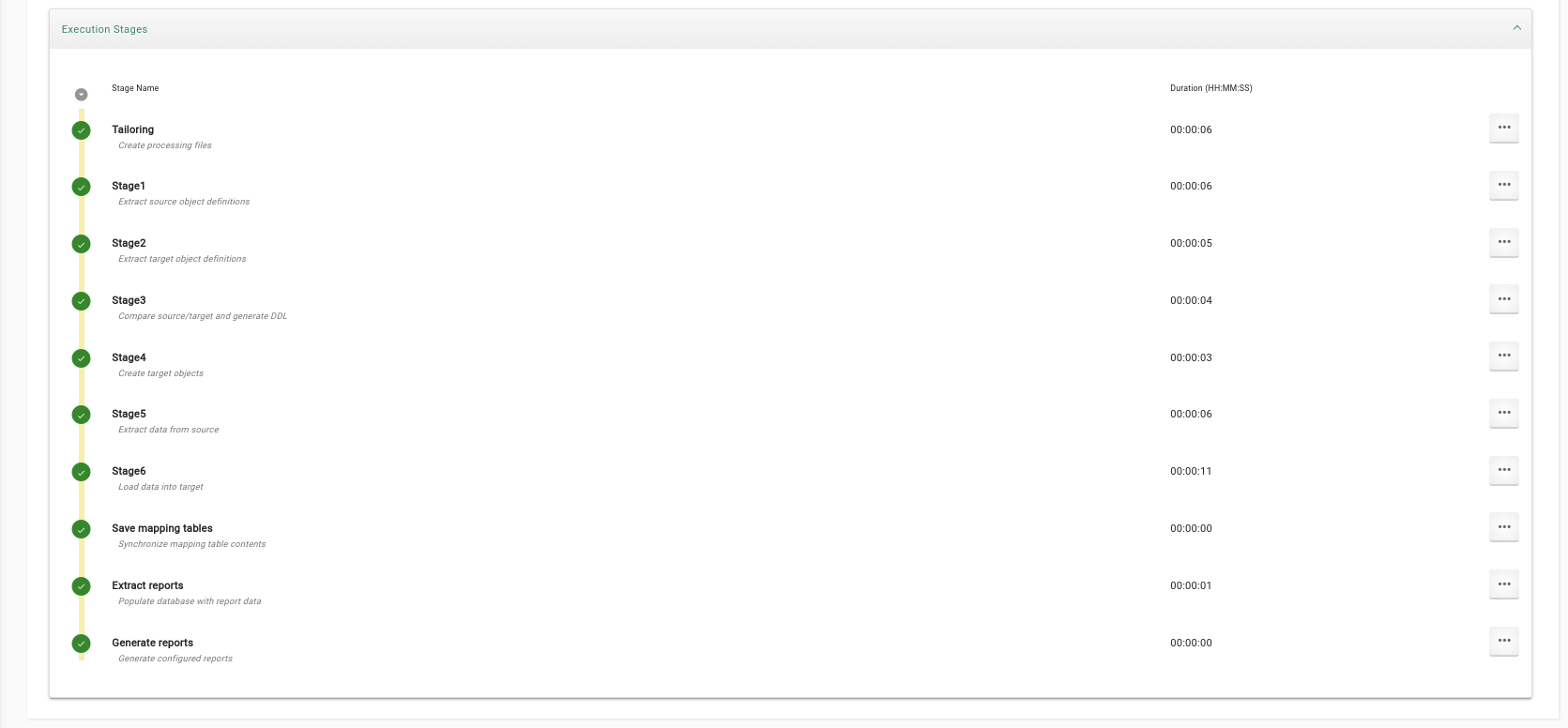
The task runs asynchronously in the background. Every five seconds, the status is refreshed automatically. Within a few minutes the task should finish.
-
In the top left corner, the task status should show COMPLETE.
It is possible that a warning appears in Stage 1 when executing your very first task. This warning can be ignored.
You now have a complete copy of all the data from the production
tables in the database testing under the schema name qa1.
Previous section: Infrastructure objects | Next section: Modification Methods and Modification Sets