Connecting to the user interface
The user interface is hosted by a dedicated service, that is started with all the XDM services.
It opens a port for HTTP or HTTPS. For the basic setup refer to configuration of user interface.
To be able to connect to the user interface there must be no firewalls restricting the connection from the user machine
to the running service.
To use the web interface, the user can open a browser on their local machine and enter the URL of the web service.
For example, if the xdm3-ui image is running using docker on a host named xdm-installation,
the port is set 80, and there is no SSL configuration using a server certificate,
then the URL is http://xdm-installation.
When SSL configuration is enabled, and the port is set to 8443, the URL is https://xdm-installation:8443.
If there are issues connecting to the user interface:
-
check the local network connection.
-
check whether any network zones without routes exist.
-
check whether the port on the host machine is mapped to the public interface.
If there are problems displaying the user interface when using SSL:
-
check whether name of the used certificate matches the host name.
-
ensure that the trust store for the certificate is installed in the local browser.
-
ensure that the URL starts with
https://.
Login on the user interface
Every user needs to authenticate when using the browser interface. The credentials which can be used to login depend on the settings of the user management for the XDM core service. Please refer to the chapter configuration of users and LDAP to understand which credentials are valid. There is no user registration process in the browser interface. The users must be configured with the XDM core service.
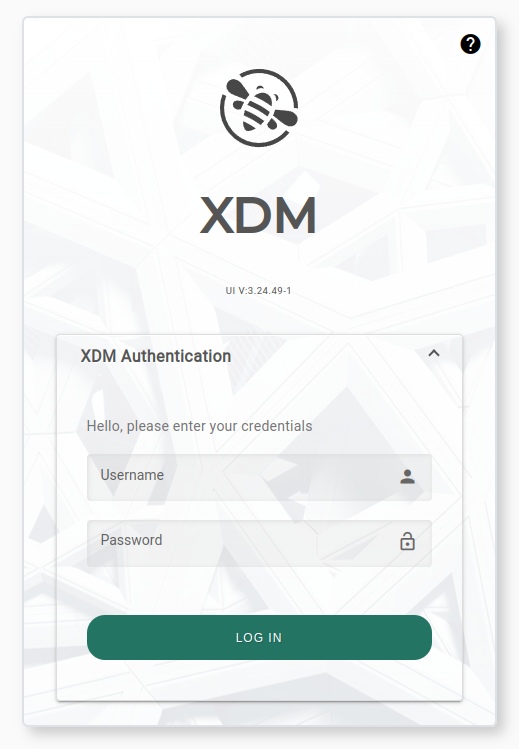
When logged in, every user has one unique username, and a number of attached roles. The username and the roles control, which objects are visible in the user interface. A user only sees lists and objects for which the user or one of the user’s roles has read permission.
The user can be included in the global admin role. With this role, the user can see all XDM objects and has authority to configure the access permission for every XDM object.
When logged in, the user can check their roles and global admin permission by clicking the username in the head bar of the user interface.