Analyze Row Level Processing Task
Overview
Sometimes a Row Level Processor Task selects too much data or not enough data. In most cases this is caused by configuration settings in the Application Model. This guide explains how to analyze a Row Level Processor Task and how to identify misconfigured rules.
How a Row Level Processor Task selects its data
A Row Level Processor Task starts with:
-
A start table in an Application Model.
-
A start condition, usually a start query.
XDM evaluates the start condition on the start table and selects all matching keys. These keys define which rows are processed by the task.
After that, XDM applies the Data Relation Rules.
A Data Relation rule always connects two tables:
The Base table
-
The Base table is the starting point of the rule. For each row in the Base table, XDM checks whether a related row exists in another table according to the defined key columns and conditions.
-
XDM reads the Base table and builds a
WHEREclause for the Referenced columns if applicable, including the table SQL condition.
The Referenced table
-
The Referenced table is the lookup target. It must contain matching rows (usually identified by key columns) that correspond to the rows of the Base table. XDM uses the referenced table to validate or enrich the data from the Base table.
The rows that are found in the Referenced table are then used as the Base for the next table. This continues until every reachable table is processed.
XDM remembers the keys that have already been selected per table and does not read the same row twice, even if this row can be reached via multiple paths. This is called key tracking.
For more Information about how a Row Level Processor Task works refer to Row Level Processor Task
Additionally, Reduction Rules can filter the rows of a table. Only rows that satisfy the Reduction Rule conditions remain in the subsets.
For more Information about Reduction Rules see Exclude and Reduction Rules
In many cases an incorrect configuration of Data Relation Rules and/or Reduction Rules leads to a selection where either too much, not enough, or wrong data is selected.
Incorrect data is selected
There are two types
-
Not enough data:
-
Expected rows are missing from one or more tables.
-
-
Too much data:
-
Tables contain too much rows instead of a recent subset.
-
In both cases, the analysis follows the same basic steps:
-
Identify the table where the data volume becomes incorrect.
-
Check Start Query, Data Relation Rules, and Reduction Rules along this path.
Identifying The Problem Table
The first step is to find the table where the data volume first becomes incorrect.
-
The problem table can be identified by doing the following steps:
-
In the executed Row Level Task on stage two Subset Extraction. In this window, the selected tables and the number of rows are displayed.

-
Or compare the number of rows in key tables with the source system or with previous runs. The first table where the actual data volume clearly differs from the expected volume is the problem table.
-
List all Data Relation Rules that involve this table.
-
For each rule, check where this table is used as Referenced table.
-
Analyze the rules backwards:
-
-
Check the Base table: Does it already contain too few or too many rows?
-
If the Base table already looks wrong, repeat the process one step earlier.
-
Continue until you find the last table that still contains a correct set of rows.
-
At this point, focus on the rules that read from this table.
-
Checking Data Relation Rules
For each Data Relation Rule on the path from the start table to the table where you see problems, review the following aspects.
Base And Referenced Tables, Columns And Mapping
-
Is the Base table correct and consistent with the logical data model?
-
Is the Referenced table correct, or have Base table and Referenced table been swapped by mistake?

-
Example:
CUSTOMER→ORDER, notORDER→CUSTOMER, if you start from customers.-
Are all necessary key columns mapped correctly between Base and Referenced?
-
Are the configured column pairs complete for the intended key?
-
-
For composite keys, ensure that all key parts are mapped.
Analyzing Start Query And Start Conditions
The start query defines which rows from the start table enter the Application Model. If this selection is wrong, all subsequent tables will also be wrong.
Check the following aspects:
-
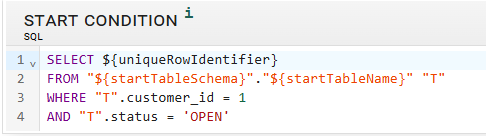
Does the start query filter on status or flag columns?
-
Example: Only
STATUS = 'OPEN'or only rows with a certain processing flag.-
Are there expected rows that do not fulfill this condition?
-
-
Example: Rows with
STATUS = 'CLOSED'that should be included.-
Is any date or timestamp filter correct and aligned with the intended time range?
-
Is the filter missing or too weak, so that the start table already contains far more data than required?
-
Base Table Condition Script (conditionScript)
A Condition Script can restrict a Data Relation Rule to specific Base rows.
-
Is there a Condition Script that activates the rule only for specific rows?
-
Example: Only rows with
STATUS = 'ACTIVE'are processed, all others are ignored.
-
-
Does the condition unintentionally exclude Base rows that should participate?
-
Example: Wrong status check, wrong comparison operator, or missing allowed value.
-
-
Is the logic inverted?
-
Example: Using
!=instead of=so that the wrong rows are passed to the relation.
-
-
In a scenario with too much data: Is a required Condition Script missing or too weak?
For more Information see Base Table Condition Script
Lookup Script (lookupScript)
The Lookup Script converts Base values into values that match the key structure of the Referenced table.
-
Does the Lookup Script correctly transform all required columns?
-
Example: Base has
FIRST_NAMEandLAST_NAME, Referenced uses a singleNAMEcolumn. The script must combine the parts correctly, for example with a space.
-
-
Are all parts of a compound key preserved, or is information lost during transformation?
-
Could the script cause many different Base rows to map to the same Referenced key?
-
Could the script produce keys that do not exist in the Referenced table?
For more Information see lookup Script
Referenced Table SQL Condition (sqlLookupExpression)
The SQL condition controls which rows are selected from the Referenced table.
Check the following:
-
Does the SQL expression contain all required columns with the correct
?placeholders?-
Example:
FIRSTNAME=? AND SUBSTRING(LASTNAME, 1, 2)=?
-
-
Is the filter too restrictive?
-
Example: Only one type or a single status is allowed, although more should be included.
-
-
Are there additional filters (status, type, date) that exclude required rows?
-
Are important filters missing?
-
Example: Entire history instead of the latest version or recent period.
-
-
Is a date or status filter missing, so that the Referenced table is much larger than needed?
For more Information see sqlLookupExpression
Checking Reduction Rules
Reduction Rules filter the rows of a table after they have been reached via Data Relation Rules.
For each table with a Reduction Rule, review the following:
-
Check the
WHEREclause:-
Are desired rows excluded by this clause?
-
Does it filter only a single status, type, or date range, although more should be included?
-
Is it too weak, leaving more rows than actually required?
-
-
Be aware that a Template Reduction replaces the entire
SELECTstatement. Verify that the template query contains all required conditions and does not filter too much or too little.-
Does the template
SELECTinclude all required columns and conditions? -
Does it accidentally filter away more rows than intended?
-
Does it ignore important joins or filters that exist in the default query?
-
Note that a Reduction Rule does not start or stop the Row Level Processor task itself. However, it can cause a sudden drop or increase of rows at a specific table.
In scenarios with too much data, also check whether a Reduction Rule is missing where a restriction would be appropriate (for example limit HISTORY to the last twelve months).#

For more Information see Reduction rule
Scenario: Not Enough Data Is Selected
Target: Identify from which table onward data is missing and which rule causes the problem.
Example: Missing Orders With Status = CLOSED
Target: For every entry in CUSTOMER, all matching rows from ORDER should be copied.
Current State: Table ORDER only contains rows with STATUS = 'OPEN'. Rows with STATUS = 'CLOSED' or STATUS = 'CANCELED' are missing.
Analysis:
-
Table with missing data:
ORDER. -
Rule: Base
CUSTOMER, ReferencedORDER.

-
In the rule:
sqlLookupExpression = ORDER_ID = ? AND STATUS = 'OPEN'. -
Result: Closed and canceled orders are excluded by the expression, so not enough data is selected.
Possible solutions:
-
Adjust the expression, for example by removing or relaxing the
STATUSfilter.-
Example:
ORDER_ID = ?orORDER_ID = ? AND STATUS IN ('OPEN','CLOSED'), depending on the desired subset.
-
-
If required, also review any Reduction Rules on
ORDERto ensure that closed orders are not filtered out later.
Scenario: Too Much Data is Selected
Target: Identify from which table onward the data volume increases and which rule is too broad.
The analysis follows the same steps as for missing data:
-
Identify the table where too much data appears.
-
Trace the path of Data Relation Rules back to the start table.
-
Check Start Query, Condition Scripts, Lookup Scripts, SQL conditions, and Reduction Rules as described above.
Example: History Contains All Records
Target: For every dataset in ORDER, only the latest dataset from HISTORY should be copied.
Current State: All datasets from the beginning of time are copied.
Analysis:
-
Table with too much data:
HISTORY. -
Rule: Base
ORDER, ReferencedHISTORY, join onORDER_ID. -
sqlLookupExpressiononly hasORDER_ID = ?and no date filter. -
There is no Reduction Rule on
HISTORY.
Possible solutions:
-
Add a date filter in the
sqlLookupExpression, for example to select only the most recent record or records within a specific period. -
Alternatively, or additionally, create a Reduction Rule for
HISTORYthat restricts the rows to the required time range, for example the last twelve months. -
Review the start query and any previous Reduction Rules to ensure they are not already overly broad.
Scenario: Cycles and multiple paths
Cycles occur when tables reference each other directly or indirectly, for example:
-
A → B → A -
A → B → C → A
XDM can traverse such cycles with a configurable limit, controlled by the Traversal value in the Data Relation Rule.
Problem: A table can be reached via multiple paths. XDM avoids duplicates via key tracking, but:
If a second path exposes additional keys that would never be reached via the main path, an unexpectedly large amount of data can be selected.
For a more detailed example refer to Traversal example.
Understanding Traversal in Cycles
The Traversal setting in a Data Relation Rule controls how often this rule may be used per path in the graph:
-
traversal = -1– No limit, the rule will be used any number of times, causing very deep or wide paths and large selections. -
traversal = 0– The rule is never used, effectively disabling the relation and making some tables unreachable. -
traversal = 1– The rule is used once per path. -
traversal = 2– The rule is used at most twice per path. -
etc.
Analyzing cycles
To analyze cycles, use the following steps.
Use The Graph View

-
In Application Model → Data Relation Rules, open the graph view.
-
Look for arrows in both directions between two tables (for example
<->), or for larger cycles involving multiple tables.
Check Traversal Values
-
In the Data Relation Rule → Conditions and Adaption
-
Inspect the traversal values of all rules that participate in the cycle.
-
If the involved rules use
traversal = -1, the paths can be traversed to a very great depth. This can cause large selections and unexpected “expansion” of the subset.
Possible actions
-
Reduce the traversal to
1or2to control the maximum depth of traversal through the cycle. -
In addition, review the conditions and SQL filters used in these rules.
Follow an example key
-
Take a concrete start row, for example a specific dataset from the start table.
-
Mentally (or using the logs) trace which tables are reached in sequence and through which rules.
-
Pay close attention to points within the cycle where new, externally originating keys are added that you do not actually want to include.
Rework conditions in cycles
-
Check all Data Relation Rules that participate in the cycle:
-
Are there overly broad conditions or lookup expressions that pull in foreign rows?
-
Can you reduce the traversal value for the rule?
-
Can you tighten the conditions or SQL expressions to avoid unwanted rows?
-
Example Cycle: PERSON and PERSON_RELATION
Tables:
-
PERSON -
PERSON_RELATION
Rules:
-
PERSON→PERSON_RELATION -
PERSON_RELATION→PERSON
Both rules are configured with traversal = -1.
Expectation: Only direct relationships should be included in the subset.
Current State: Multiple relationship steps are traversed, so that very distantly related persons are included in the selection.
Possible solution:
-
Set
traversal = 1so that each relation is only followed once per path. -
Refine the conditions so that only the desired relationship types are taken into account. For example, restrict to specific relationship codes or statuses in the SQL condition or condition script.
Scenario: Inconsistent target data caused by Database Triggers
Target: Understand how misconfigured Data Apply Rules can create inconsistent data in the target, even when the Row Level Processor Task completes without errors, because of the interaction with database triggers.
Background: Database Triggers in Row Level Processing
When XDM executes a Row Level Processor Task, it writes data to the target database using regular DML operations (such as INSERT and UPDATE) according to the selected fill mode.
From the point of view of the database, these operations do not differ from statements issued by any other application. This has two important consequences:
-
All database constraints (for example primary keys, foreign keys, unique constraints, check constraints) are enforced normally.
-
All database triggers defined on the target tables are fired normally when XDM inserts, updates, or deletes rows.
XDM does not bypass or disable database triggers. If a trigger changes data in related tables, XDM will see only the resulting success or error from the database. XDM does not interpret the internal trigger logic, and it does not automatically adjust the execution order based on the trigger behavior.
Data Apply Rules in an application model only control the order in which XDM applies data to tables. They do not change how triggers work. However, a wrong order (for example Child → Parent instead of Parent → Child) can lead to subtle inconsistencies that do not cause SQL errors, but still leave the target data in an incorrect state.
Example: Incorrect Data Apply Rule Order with Department and Employee
In this scenario, the Row Level Processor Task is technically successful, but the target data is inconsistent because of a misconfigured Data Apply Rule and a trigger on the child table.
Table Structure
Assume the following simplified tables in the target database:
| Table | Column name | Type |
|---|---|---|
DEPARTMENT |
DEPT_ID |
INTEGER NOT NULL PRIMARY KEY |
DEPARTMENT |
NAME |
VARCHAR(50) |
DEPARTMENT |
NUMBER_OF_EMPLOYEES |
INTEGER |
| Table | Column name | Type |
|---|---|---|
EMPLOYEE |
EMP_ID |
INTEGER NOT NULL PRIMARY KEY |
EMPLOYEE |
DEPT_ID |
INTEGER NOT NULL FOREIGN KEY → DEPARTMENT.DEPT_ID |
EMPLOYEE |
NAME |
VARCHAR(50) |
EMPLOYEE |
STATUS |
VARCHAR(20) |
There is a database trigger on the EMPLOYEE table that maintains the NUMBER_OF_EMPLOYEES counter in DEPARTMENT:
CREATE OR REPLACE FUNCTION trg_emp_inc_dept_count()
RETURNS trigger AS $$
BEGIN
  UPDATE department
  SET number_of_employees = number_of_employees + 1
  WHERE dept_id = NEW.dept_id;
  RETURN NEW;
END;
$$ LANGUAGE plpgsql;

CREATE TRIGGER emp_after_insert
AFTER INSERT ON employee
FOR EACH ROW
EXECUTE FUNCTION trg_emp_inc_dept_count();
This trigger runs each time a row is inserted into EMPLOYEE, regardless of whether the insert is executed by XDM or by another application.
Row Level Processor configuration
The Row Level Processor Task copies a subset of departments and employees from a source environment to the target environment.
Key settings:
-
Fill mode: Insert and on key collision: Update target row (insert rows when the key does not exist and update rows when the key already exists).
-
Application model for the target environment is used during processing.
-
A Data Apply Rule is defined in the wrong direction:
-
Base table =
EMPLOYEE -
Referenced table =
DEPARTMENT
This configuration means that, when applying data in the target:
-
XDM processes
EMPLOYEEfirst. -
XDM processes
DEPARTMENTafterwards.
This is the reverse of the natural parent–child order, which would process DEPARTMENT before EMPLOYEE.
Assume that in the target:
-
Department
D1already exists withNUMBER_OF_EMPLOYEES = 5(5 employees are already present). -
The new Row Level Processor run should:
-
insert 10 additional employees for
D1, and -
update some attributes of
D1based on the source data.
-
Execution steps
When the task is executed, XDM performs the following logical steps.
-
Apply data to
EMPLOYEE(Child) first
For each new employee row, XDM inserts into EMPLOYEE, for example:
  INSERT INTO employee (emp_id, dept_id, name, status)
  VALUES (10001, 'D1', 'Alice', 'ACTIVE');
  -- plus further rows for the remaining new employees
For every such insert, the emp_after_insert trigger fires:
  UPDATE department
  SET number_of_employees = number_of_employees + 1
  WHERE dept_id = NEW.dept_id; -- 'D1'
Starting from NUMBER_OF_EMPLOYEES = 5, and inserting 10 new employees, the trigger increases the counter to:
-
NUMBER_OF_EMPLOYEES = 15
At this point, the data in DEPARTMENT is temporarily correct:
All statements succeed. The database reports no error. XDM sees only successful inserts on EMPLOYEE.
Apply data to DEPARTMENT (Parent) afterward
Next, XDM applies the department data according to the same Row Level Processor Task. With fill mode Insert and on key collision: Update target row, XDM updates
the existing department row D1 with data from the source.
Suppose that in the source environment the department D1 still has NUMBER_OF_EMPLOYEES = 5 (only the original 5 employees are present in source).
The Row Level Processor updates the target department with the source values:
  UPDATE department
  SET name = 'Sales',
      number_of_employees = 5
  WHERE dept_id = 'D1';
This update overwrites the correct counter value 15 (computed by the trigger) with the outdated value 5 (copied from the source).
Again, the database reports no error. The update statement is valid and succeeds.
Result: Inconsistent But Technically Successful
After the task completes:
-
In
EMPLOYEE, there are 15 employee rows for departmentD1. -
In
DEPARTMENT, theNUMBER_OF_EMPLOYEEScolumn shows only5.
This is inconsistent from a business perspective, but there are:
-
no foreign key violations,
-
no trigger errors,
-
no SQL errors reported to XDM.
From XDM’s point of view:
-
all statements executed successfully,
-
the Row Level Processor Task finishes with status COMPLETE,
-
no automatic warning is raised about the mismatch between the number of employees and the summary column.
The inconsistency is caused purely by the combination of:
-
a database trigger that maintains a summary column in the parent table, and
-
a misconfigured Data Apply Rule that enforces the wrong processing order (Child → Parent), which allows a later update to overwrite the correct trigger result with an outdated source value.
How To Fix The Configuration
To avoid this problem, the processing order must be aligned with the logical parent–child relationship and the behavior of the triggers.
In the example:
-
Define the Data Apply Rule in the correct direction:
-
Base table =
DEPARTMENT -
Referenced table =
EMPLOYEE
This enforces that:
-
XDM first applies data to
DEPARTMENT(parent). -
XDM then applies data to
EMPLOYEE(child).
With this configuration:
-
The department row
D1is updated first to reflect the current source information (including any initialNUMBER_OF_EMPLOYEESvalue). -
Afterward, XDM inserts the 10 new employees into
EMPLOYEE. -
For each insert, the trigger increases
NUMBER_OF_EMPLOYEESinDEPARTMENT.D1.
The final NUMBER_OF_EMPLOYEES will then correctly reflect the total number of employee rows in EMPLOYEE for D1.
Checklist: Investigating Trigger-Related Inconsistencies
When you suspect that database triggers cause inconsistent summary or status values in the target after a Row Level Processor Task, follow this checklist:
-
Identify all triggers on the parent and child tables involved.
-
Look for triggers that:
-
update summary columns (such as counters or totals),
-
adjust status or lifecycle fields,
-
write audit or history rows that reflect business state.
-
-
-
Review the Data Apply Rules for the affected tables:
-
Does the configured Base → Referenced direction reflect the real parent–child relationship?
-
Are there rules that effectively enforce Child → Parent processing when Parent → Child would be required?
-
-
Compare source and target values:
-
Does the source contain outdated summary data that is written over correct values produced by triggers in the target?
-
After execution, do counts or totals in parent tables match the actual number of child rows?
-
-
If necessary, adjust:
-
the direction of the Data Apply Rules,
-
or the way summary or status columns are handled (for example, by not copying them from the source, or by recomputing them in the target only).
-
If problems persist, temporarily disable non-essential triggers in a test environment and rerun the Row Level Processor Task. Comparing the results with and without triggers can help isolate whether the inconsistency is caused by trigger logic or by the application model configuration.