Using data preview in RLP and TC tasks
Description
XDM provides a data preview for RLP tasks and table copy tasks to view the extracted data. This enables checking data during a task execution. This avoids, for example, inserting data into the target that should not be inserted. When deleting data, it avoids deleting data that should be preserved.
When designing an RLP task, or a table copy task with modification, it is useful to have a look into the extracted data after the extract before inserting or deleting it in the target environment. This is also useful for verifying modification in the task.
XDM provides a data preview for these situations. The data preview shows the data after extracting it from the source databases.
When modification is used, it affects the data shown in the preview. The effect is dependent on the scope of the modification rules. If rules with scope source are used, the modified data is shown in the preview of the extracted tables. If rules with scope target are used, extra tables showing the modified data are added to the preview.
XDM provides a data preview for the following task types:
-
Row level processor task (after Stage 2; additional tables after Stage 5),
-
Row level to icebox task (after Stage 2), and
-
Row level from icebox task (additional tables after Stage 3), and
-
Row level delete task (after Stage 2).
-
Table copy task (after Stage 5).
| In table icebox tasks, no data preview is available, even if SQL data transport is used. |
The data preview is shown in the schema browser of the task execution window. If data preview is not available, not activated, or the user has no permissions to see the data, then XDM shows an empty window instead. The action can be found for task executions in the top bar of the task execution and for workflow executions at each separately listed task execution.
Configuration and Permissions
To see data in the data preview, some configuration is necessary. In addition, the user who wants to see the preview needs certain permissions in XDM.
Configuration in the XDM environment
To have access to the XDM data files, the folder /xdm/tasks must be mounted
in the core-server service specified in docker-compose.yml. In addition, this must
precisely match the directory which is mounted as /xdm/tasks in the dataflow-server.
To make this configuration work, the volume mounts must specify read/write (rw) permission.
Section Volume and Mount Points describes how this configuration is set.
Configuration in Task Template and Task
To show the extracted data of the task in the schema browser, the property Prepare extract data preview must be set to true in the task template or task. Furthermore, the property Delete execution files on success must be set to false.
Required permissions for the user
To see the data preview of a task execution, the user needs these permissions:
-
READpermission for the task or the task template, -
READpermission for the task execution, -
READpermission for the connections of the source and/or target environment, and -
BROWSEpermission for the connections of the source and/or target environment.
Checklist to verify whether data preview can be used
-
System configuration:
-
/xdm/tasksmust be the internal name in thecore-serverand must match the volume which is mounted as/xdm/tasksin thedataflow-server. -
The specified volumes are mounted with read/write (
rw) permission.
-
-
Permissions in XDM:
-
READ permission on the task or the task template,
-
READ permission on the task execution,
-
READ and BROWSE permission on the connections of the source and/or target environment.
-
-
Types of task and the stages after which the data can be viewed:
-
Row level processor task (after Stage 2; additional tables after Stage 5),
-
Row level to icebox task (after Stage 2),
-
Row level from icebox task (additional tables after Stage 3),
-
Row level delete task (after Stage 2), and
-
Table copy task (after Stage 5)
-
-
Properties:
-
The property Prepare extract data preview is set to true in the task template or task.
-
The property Delete execution files on success is set to false.
-
Working with the data preview
| Information about the PUBLIC schema This schema must be present for technical reasons and does not contain any data related to the data preview. For this reason, this schema can be ignored. |
Showing the data
To display the extracted and possibly modified data, a schema browser is made
available in the Data Preview window of a task execution. The schema
browser lists the schemas used in the task execution. Once the schema is chosen,
then the tables in the chosen schema are listed. If modification with scope
target is used in the task
execution, schemas with the suffix _mod are added to show the modified data.
Selecting a table shows the selected data in the Data tab. If the data was modified when the data was stored, the modified data is shown.
In addition, structural information is shown in the other tabs of the data preview.
| The data preview is not automatically removed when the task finishes successfully. It continues to be available to check which data was inserted or deleted in the target environment. The preview is removed when the task execution files are removed. |
| Task execution can be configured so that the execution files are automatically removed after a certain time. These files can also be removed manually. See Execution retention period for more information. If the execution files are never removed, and the preview is used regularly, this will ultimately consume a large amount of disk memory on the database server. |
Filtering data
By default, 20 rows are shown in the data tab. Changing the Number of loaded rows and executing Update view will change the maximum number of rows shown.
In some situations it is useful to be able to filter the selected data. This is
possible by using an SQL SELECT statement in the Edit SQL Query box.
XDM uses an H2 database for the preview.
The H2 documentation
describes SELECT statement syntax.
|
Example
Using our tutorial environment, we want to save one employee and all dependent rows in an RLP icebox generation. Furthermore, we want to check, whether at least ten salaries entries are selected with this employee.
To archive this, we create an RLP icebox task template with the employees environment as source environment. The start condition query is:
SELECT ${uniqueRowIdentifier}
FROM "${startTableSchema}"."${startTableName}" "T"
WHERE "emp_no" = 110420
The property Prepare extract data preview must be set to true.
The task is executed up to and including stage 2. Looking at the schema browser it shows this view:
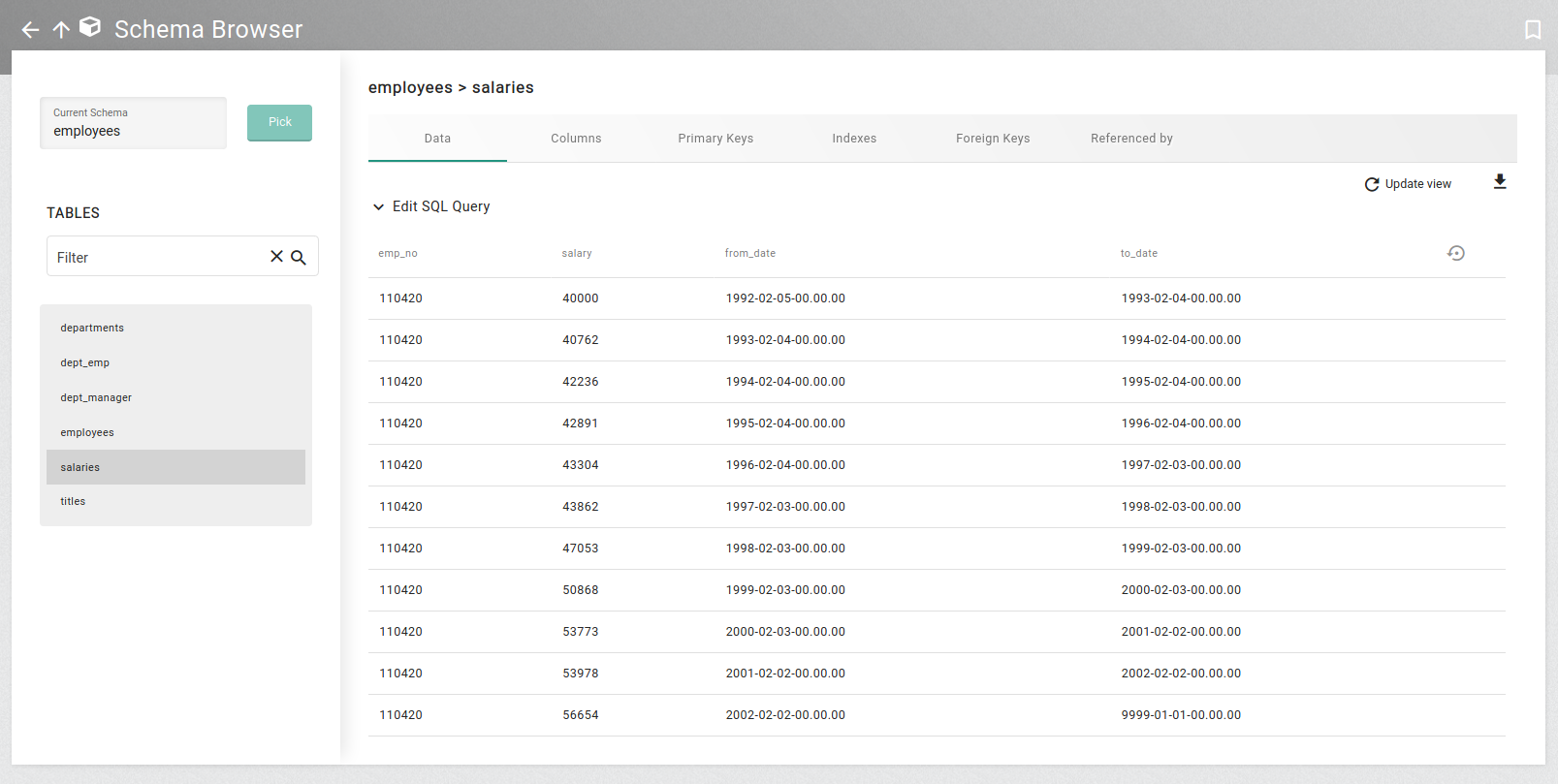
The Data preview of the salaries table shows, that eleven rows are selected from the salaries table, and the data set fulfills our requirement. Now we can resume the task execution to store this data set into an icebox generation.