Import Data Relation Rules from Database
The Import from Database action reads foreign key information directly from the connected database and converts it into Data Relation Rules.
Advantages, Disadvantages and Usages
Advantages
-
Very fast for many tables at once.
-
Uses the database’s existing foreign keys, so you get a consistent starting point.
-
Good default for most standard application schemas.
Disadvantages
-
Only works where foreign keys are actually defined in the database.
-
Does not cover business relations that are not modeled as foreign keys.
-
Does not cover business relations to other installed applications.
-
May import relations that are technically defined but not relevant for test data.
Use this when
-
The database has reasonably complete and correct foreign keys.
-
You want to bootstrap relations for many tables quickly and then adjust a few rules afterwards.
| When importing existing foreign keys, it is important to keep in mind that data relation rules have slightly different semantics to foreign keys. Data relation rules tell XDM the order in which tables need to be processed. You can import the same foreign key in two different ways: either by selecting the parent table first, or by selecting the child table first. In general, when you import a foreign key between the tables A and B, you should think of it as follows: After XDM has extracted rows from table A, it needs to extract related rows from table B next. You would then select table A first, followed by table B, when importing an existing foreign key between the two tables, regardless of whether table A is the parent or child table in this relationship. |
Importing Data Relation Rules from Foreign Keys in Database
To import the first two foreign keys that are defined on the start table departments:
-
Open the panel Table Relation Modelling at the bottom of the page.
-
Then select the tab Data Relation Rules and click Import from Database (
 ).
). -
Click the button Pick to open the list of available schemas and tables.
-
In the list Schemas, select
production. In the list Tables, selectdepartments. Click the button Choose. The schema browser will disappear and you will see a list of foreign keys.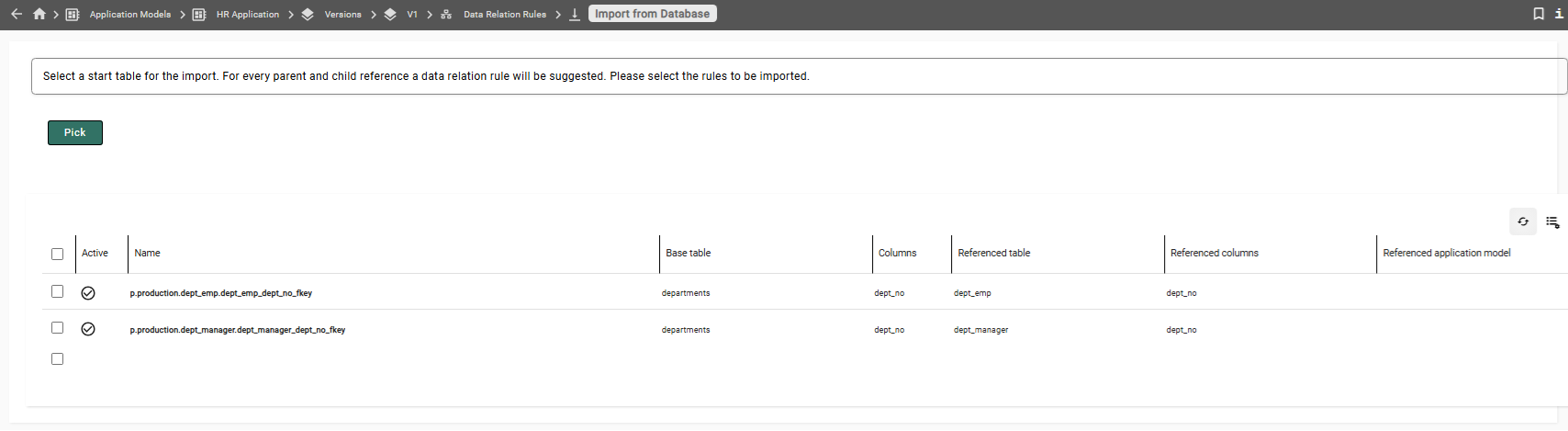
The names of the foreign keys are shown in the following format:
<p|c>.<schema_name>.<table_name>.<constraint_name>
where p or c indicates if the selected table is the parent or child table in a foreign key relationship. -
Select the check boxes in front of both foreign keys and click the import button (
 ). In the dialog window Data
Relation Rule Import, click the button Import to confirm.
). In the dialog window Data
Relation Rule Import, click the button Import to confirm.
If we were to run a row level processing task with these two data
relation rules, XDM would first copy rows from the table departments
and then try to copy rows from the tables dept_emp and dept_manager.
This would not work, however, because dept_emp and dept_manager are
not only child tables of the table departments, but also of the table
employees. Since XDM has not been instructed to follow the connection
to the table employees, attempting to insert rows into the tables
dept_emp or dept_manager would not work. The rows would be rejected
by the target database and XDM would discard them. Therefore, we need to
add additional rules:
-
We need to tell XDM that, after extracting rows from the table
dept_emp, it needs to extract related rows from the tableemployees. -
We then need to tell XDM that, after extracting rows from the table
employees, it needs to extract rows from the tablessalariesandtitles.
Note that there is also a relationship between the tables dept_manager and
employees. The entries in the table dept_manager are a subset of the
entries in the table dept_emp. Therefore, adding a data relation rule
between the table dept_emp and the table employees will automatically
add all parent rows in the table employees that any of the rows in the
table dept_manager might require to exist. This is a peculiarity of the
sample schema. In general, you would need to add an extra data relation rule
to properly represent this relationship.
To import the foreign key between the tables dept_emp and employees:
| After importing the first rules, the browser window now shows the list of data relation rules by itself. |
-
Use the bread crumbs to navigate back to the Version
V1. -
In the bottom panel Table Relation Modelling, select the tab Data Relation Rules and click Import from database (
). -
Click the button Pick to open the list of available schemas and tables.
-
In the list Schemas, select
production. In the list Tables, selectdept_emp. Click the button Choose. The schema browser will disappear and you will see a list of foreign keys.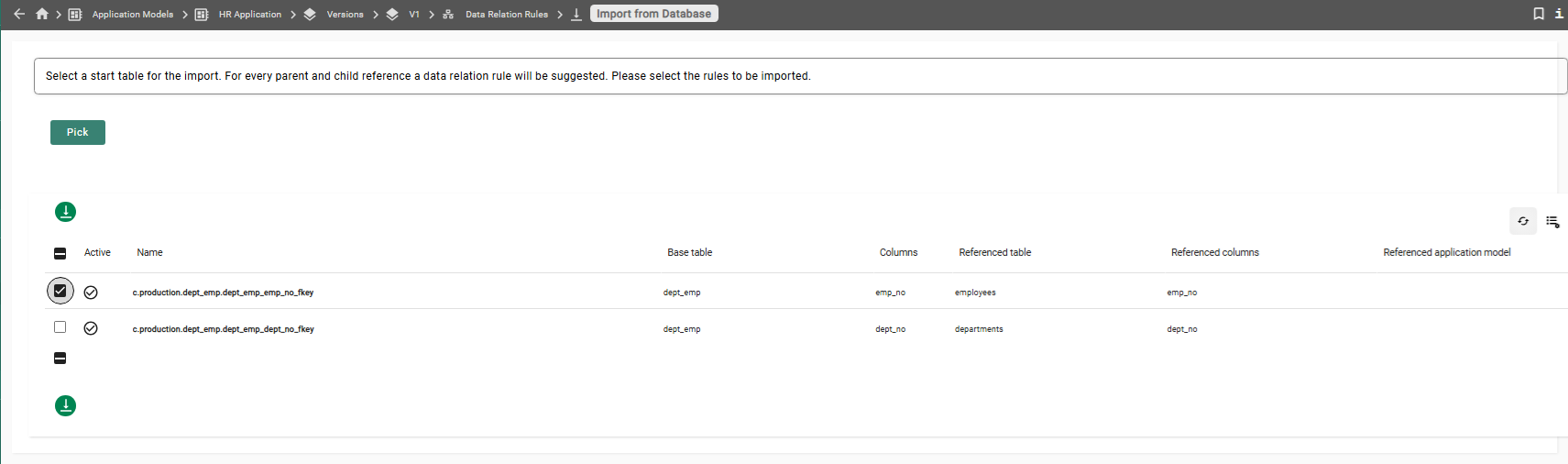
-
Select the check box in front of the foreign key with the name
c.production.dept_emp.dept_emp_emp_no_fkeyand click the import button (). In the dialog window Data
Relation Rule Import, click the button Import to confirm.The two foreign keys that are displayed have very similar names, and the order in which they are shown is not necessarily the same order as in the above screenshot. Make sure to import c.production.dept_emp.dept_emp_emp_no_fkeyand notc.production.dept_emp.dept_emp_dept_no_fkey.
To import the foreign keys between employees and its child tables salaries and titles:
-
In the bottom panel Table Relation Modelling, select the tab Data Relation Rules and click Import from Database (
). -
Click the button Pick to open the list of available schemas and tables.
-
In the list Schemas, select production. In the list Tables, select
employees. Click the button Choose. The schema browser will disappear and you will see a list of foreign keys.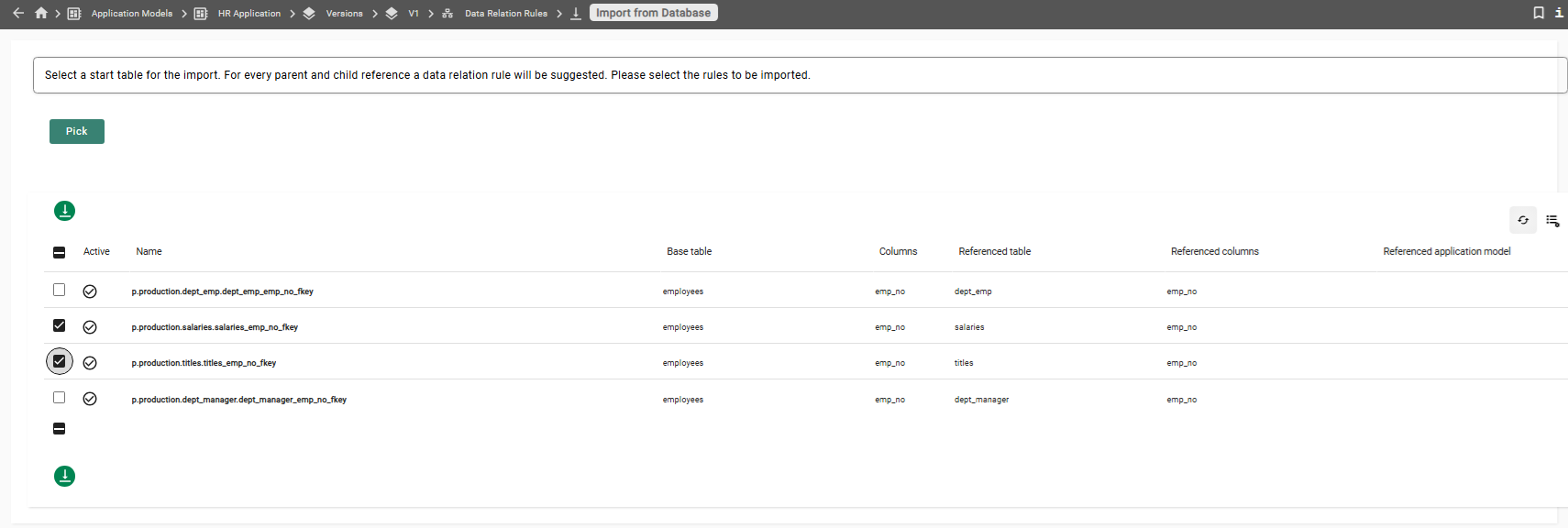
The order in which the foreign keys are shown is not necessarily the same order as in the above screenshot. -
Select the check box in front of the foreign keys with the names
p.production.salaries.salaries_emp_no_fkeyandp.production.titles.titles_emp_no_fkey, then click the import button (). In the dialog window
Data Relation Rule Import, click the button Import to confirm.
You will be taken back to the panel Data Relation Rules. The complete list of rules should now look like this:

The version V1 of the application model HR Application is now complete.
Note that V1 of our application covers all six tables of the sample schema. In more complex environments, it is possible to have application models that cover some, but not all of the tables.
Click here to go back to the Tutorial